R-02 Copilot & Agents
Copilot moves into the flow of work
The Copilot Message Center posts of the past weeks share a common pattern. Microsoft takes Copilot out of the side pane and puts it where the work happens: on the button, in the prompt and right in the chat. For end users, this is the most noticeable change in October.
On the button: prompt directly in Word, Excel and PowerPoint
The Copilot button gets its own input field (MC1470885). You type or dictate your prompt right there, without opening the Copilot pane. If you select content in Word or PowerPoint, you also get a contextual input field. Shortcut: Alt + C on Windows, Cmd + Ctrl + I on Mac. Available on Windows, Mac and web.
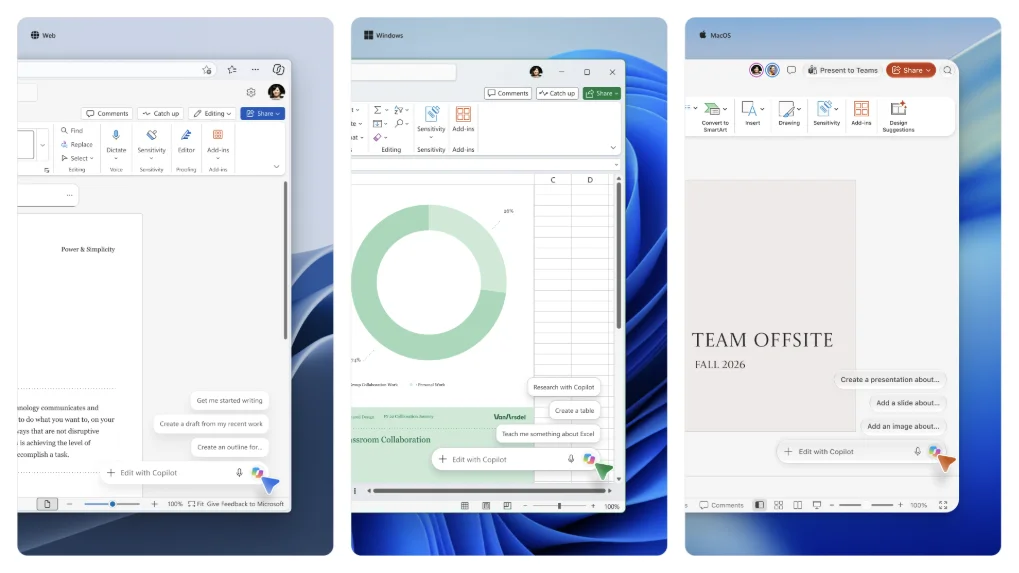 The new input field on the Copilot button in Word, Excel and PowerPoint. Screenshot: Microsoft, MC1470885
In the prompt: agents, skills and pages via @ and /
- Agents and skills can be inserted directly via @ or / (MC1479519).
- You bring existing Copilot Pages into the chat via / (MC1466760).
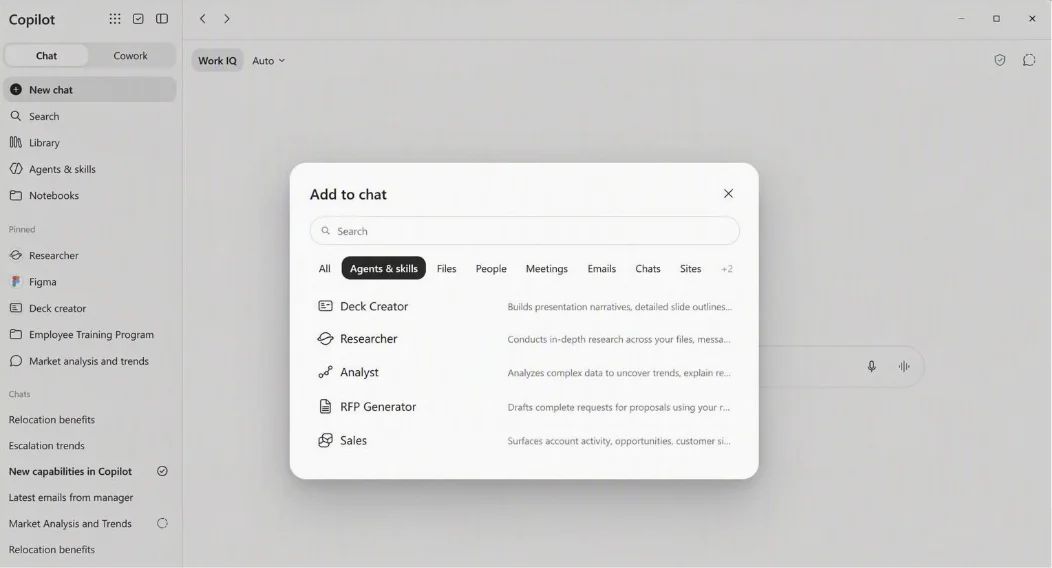 Bring agents and skills directly into the prompt. Screenshot: Microsoft, MC1479519
In the chat: writing blocks, code blocks, sharing
- Writing blocks: a dedicated editing area for emails, memos and reports, right in the chat (MC1472030).
- Code blocks: code, charts and diagrams appear inline. The separate code canvas goes away (MC1472029).
- Sharing: share whole sessions or single answers via link within the company, read-only (MC1461700). On by default. You can only turn it off tenant-wide, under Copilot > Settings > “Copilot session and response sharing”.
New design in Teams and Outlook
Copilot in Teams and Outlook gets a simplified, chat-centered design with Work IQ controls (MC1458472, MC1458470). In full-screen view, a new Tasks view shows longer-running work such as agent activity and scheduled chats.
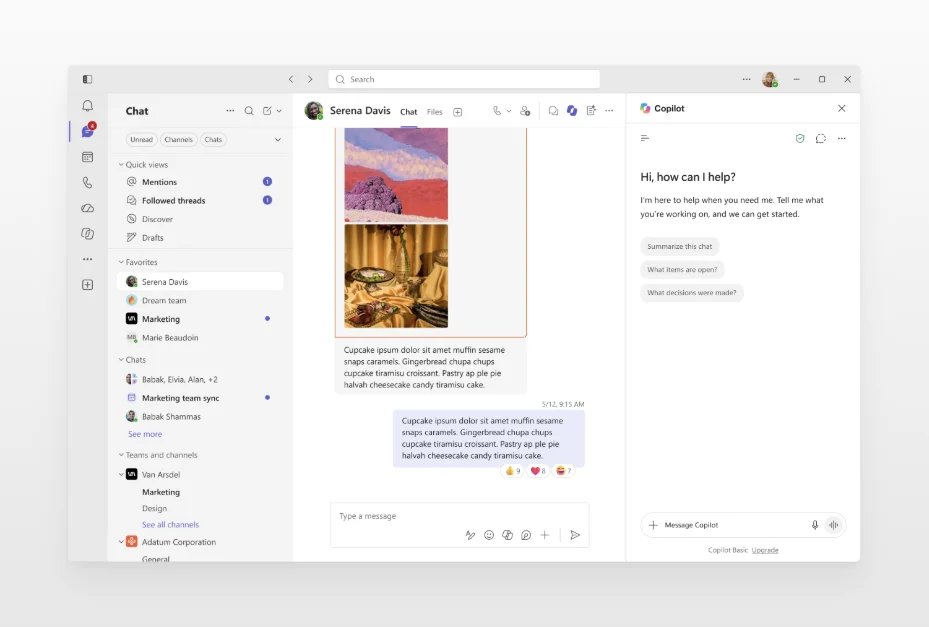 The new chat-centered Copilot design in Teams. Screenshot: Microsoft, MC1458472
ℹ️ Change of plans
If you read that Copilot will disappear from the Teams chat list: Microsoft withdrew this announcement (MC1477999) on 9 October. Copilot stays available both in the chat list and as an app in the app bar.
What stays
Each change on its own is small. Together, they change how people find Copilot. That is exactly where the risk lies: training materials and screenshots are going out of date week by week. And sometimes Microsoft takes an announcement back, like with the Teams chat list.
☕ Espresso Moment: The best espresso is useless if the machine stands in the basement. Microsoft is now putting it on your desk.
Your takeaways
- Add the Alt + C shortcut to your training
- Show agents and skills via @ and / in your training
- Consciously allow or turn off session sharing
- Tell the helpdesk: Copilot stays in the Teams chat list
- Update screenshots in training materials
Message Center posts: MC1470885, MC1479519, MC1466760, MC1472030, MC1472029, MC1461700, MC1458472, MC1458470, MC1477999
How are you tackling this in your tenant? Tell me on LinkedIn, I am curious about your experiences.
Share this note

Senior Modern Workplace Consultant at amexus, Microsoft MVP, author of “Microsoft 365 Administration für Dummies”.