R-01 SharePoint & Teams
Viva Connections: Up to 10 Dashboards in Teams
Viva Connections is a centralised place in Microsoft Teams that improves employee communication, engagement and wellbeing. It provides a personalised experience that brings together messages, resources and conversations from across the organisation.
The latest update in Viva Connections now allows up to 10 connections and dashboards to be integrated into Teams. This opens up new possibilities for collaboration and productivity in your organisation.
Six-step guide for creating an additional connection
- Open the Microsoft 365 Admin Center (https://admin.microsoft.com)
- Call up the Microsoft Viva administration (under the Setup menu item)
- Open the Viva Connections administration
- Open the item “Create and manage Viva Connections experience”
- Create a new experience via “Create new”: choose whether it is only a dashboard or also has an underlying HomeSite
- Enter the URL to the HomeSite and save
Note: To create a Viva Connections experience with a HomeSite, the integrated SharePoint Online site must be a communication site.
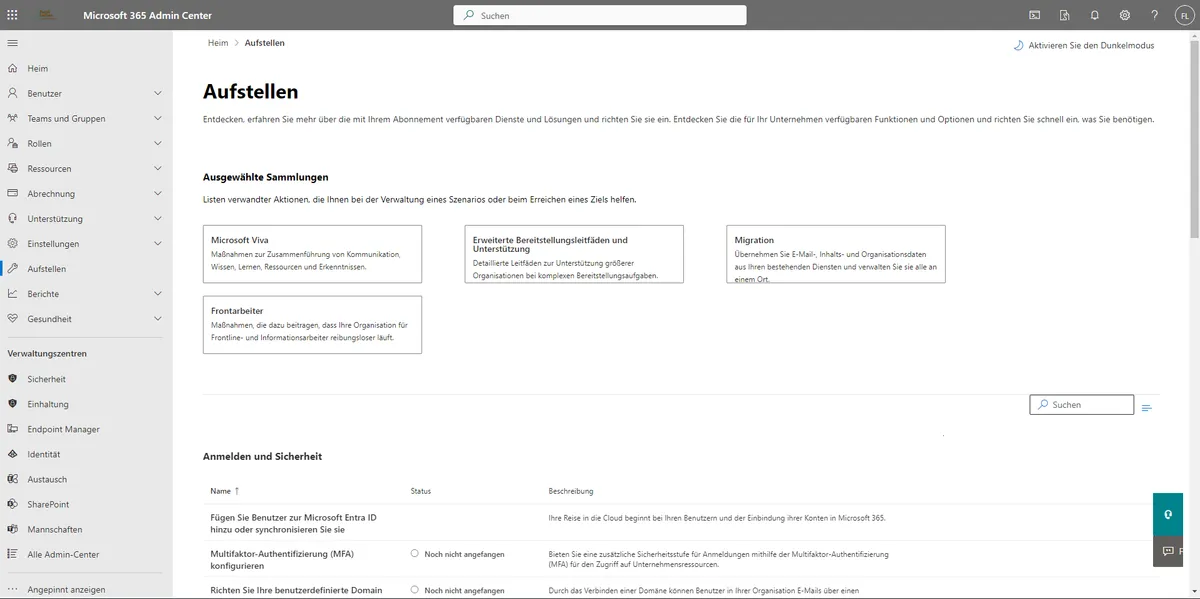
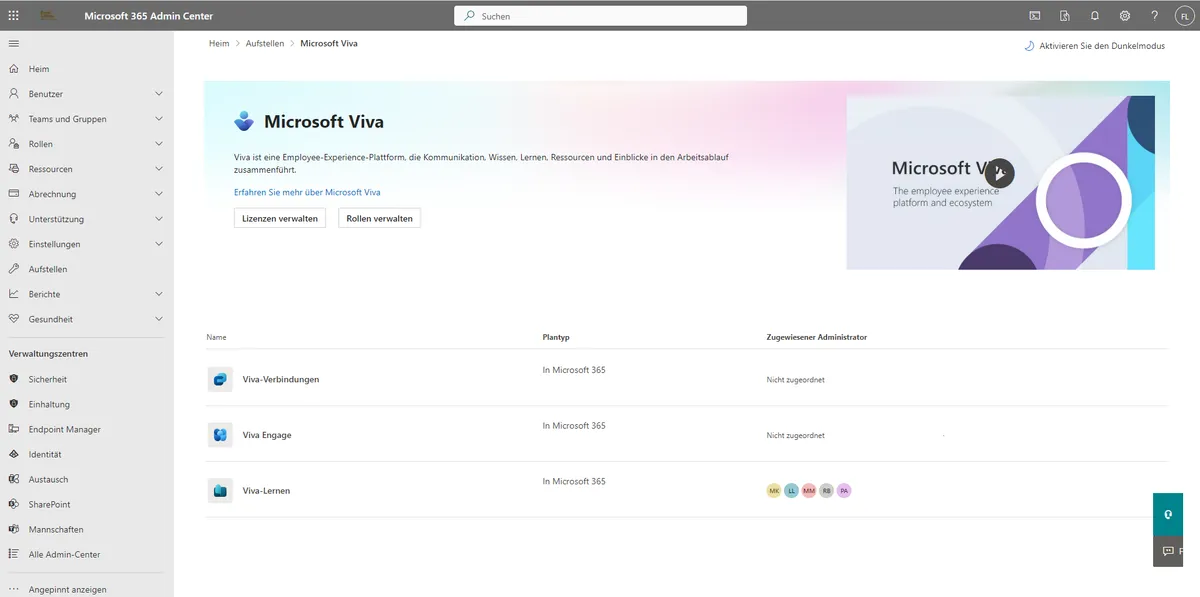
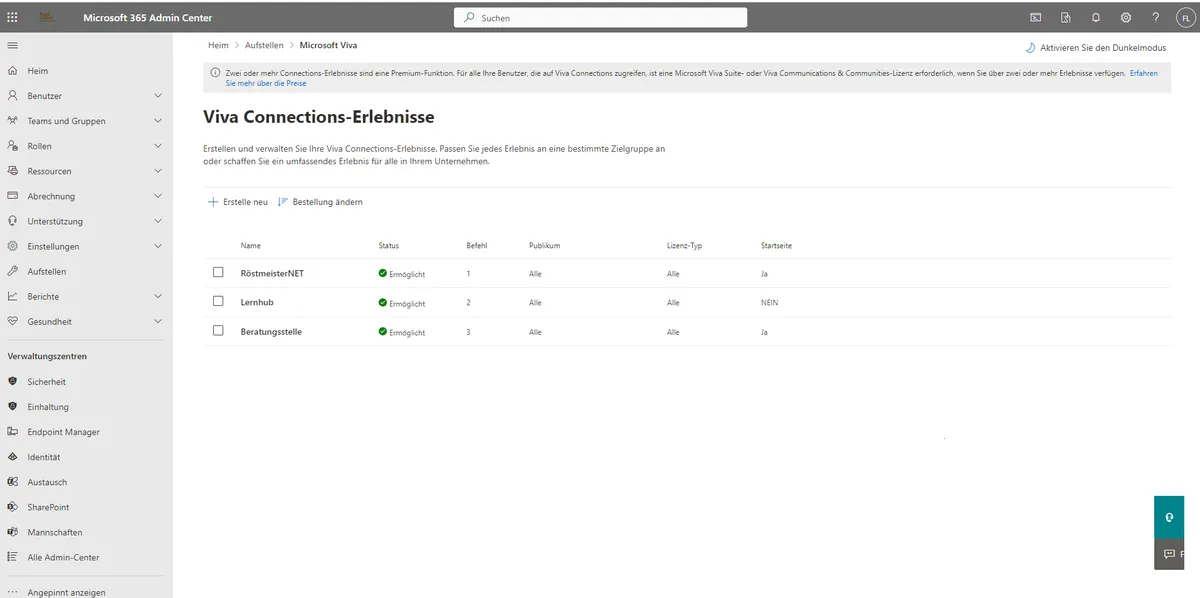
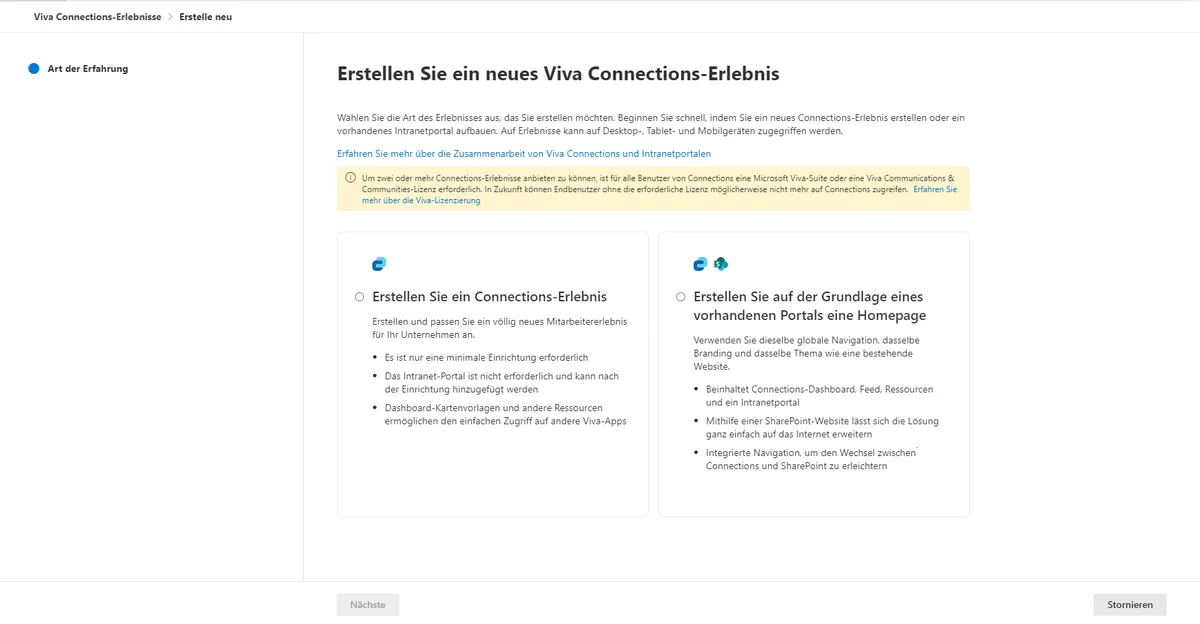
Within the creation and management of Viva Connections experiences, the administrator can define which experience is shown first when the Viva Connections app opens in Microsoft Teams, simply by changing the order.
How do employees reach the other experiences?
In general, employees access their shared experiences via Microsoft Teams and the Viva Connections app. Note: the app in Microsoft Teams can be labelled differently by the admin and may carry an internal company logo.
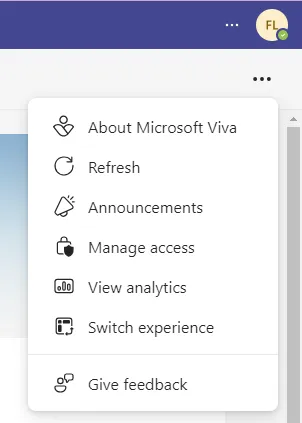
In the open Viva Connections app, employees can switch between the experiences they are authorised for. Step by step:
- Open the Viva Connections app in Microsoft Teams
- Click the menu item “Switch Experience”
- The user now sees a selection of their authorised experiences and can pick one
Conclusion
The latest update for Viva Connections opens the door to a more flexible and personalised use of Microsoft Teams. By integrating up to ten connections and dashboards, teams can work more efficiently and purposefully. It is another step by Microsoft towards a better digital workplace and an easier working day in Teams.
Share this note


Senior Modern Workplace Consultant at amexus, Microsoft MVP, author of “Microsoft 365 Administration für Dummies”.